
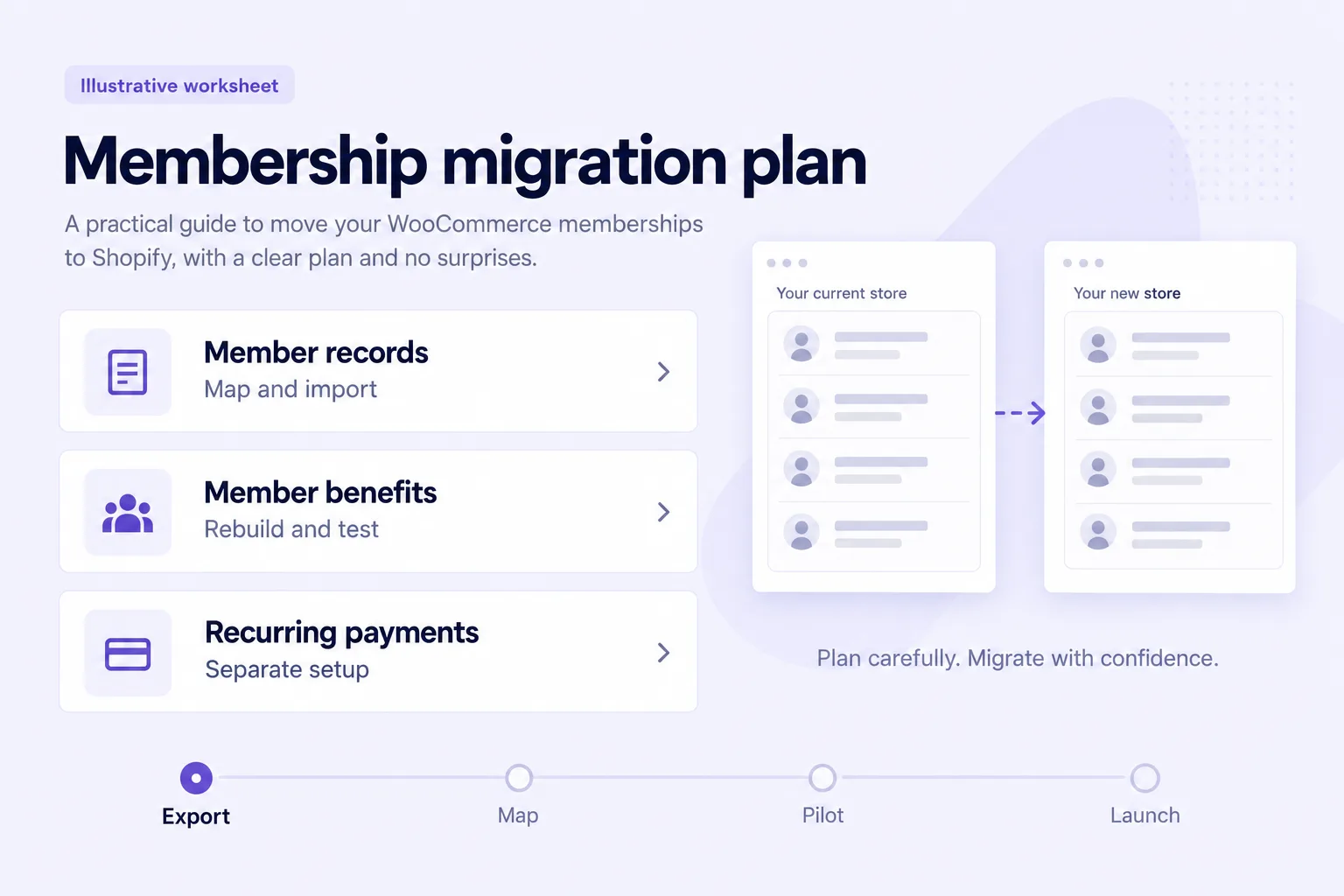
Can you move WooCommerce memberships to Shopify?
Yes, but moving member records is only one part of the migration. Memberply can import members into Shopify membership tiers. You still need to configure the benefits, decide how existing access will continue and arrange recurring payments separately.
This guide is for stores using the WooCommerce Memberships extension, with or without WooCommerce Subscriptions. If your program also uses course, community or content-dripping plugins, inventory those requirements before choosing the destination experience. A paid retail membership and a learning platform are different projects.
Use Memberply when the destination program centres on member discounts, store credit, shipping perks and exclusive access. Review available member benefits and compare Shopify membership apps against your actual rules.
1. Export members and record how they pay
In WooCommerce, open Memberships > Import / Export > Export to CSV. Keep an untouched source copy and note the export time. WooCommerce can filter the export by plan, status and dates. Its membership export does not export recurring billing. See WooCommerce’s export documentation.
Separately record the payment provider, subscription reference, last successful charge, next scheduled charge and any prepaid access for each paying member. Keep those billing records outside the Memberply import file.
Make a plan inventory: who qualifies, what they receive, how long access lasts and which WordPress plugins enforce it. Count members by plan and status so you can reconcile the destination. Capture later joins, cancellations and renewals in a final change list before launch.
2. Map WooCommerce fields to Memberply
Download the current template from Members > Import Members. Build a new file rather than uploading the WooCommerce export unchanged. The following is a mapping worksheet, not an automatic converter.
| WooCommerce source | Memberply destination | What to check |
|---|---|---|
| member_email | EmailAddress | Use the customer’s current email; required for new members. |
| member_first_name / member_last_name | FirstName / LastName | Map optional profile details. |
| Membership plan | MembershipTier or MembershipTierId | Map to a tier you have created in Memberply. WooCommerce IDs are not Memberply tier IDs. |
| Membership status | Active | Explicitly map approved active access to yes and inactive access to no. Do not copy status labels unchanged. |
| member_since | DateJoined | Normalize to an unambiguous date; retain the original timestamp in your migration records. |
| membership_expiration | EndDate | Review timezone conversion and access policy. Use YYYY-MM-DD, today or later, or leave blank where appropriate. |
| Your stable member reference | MemberNumber | Optional unique reference, stored as text. Do not use a per-plan membership ID as a person ID without checking uniqueness. |
| Subscription / payment references | No standard CSV field | Track separately. They do not establish recurring billing in Shopify. |
| Points, credit and order history | No standard CSV field | Reconcile and scope separately; the member CSV does not move these records. |
WooCommerce exports membership dates in the site timezone by default. Memberply’s EndDate lasts through the end of the chosen day in UTC. Decide how to preserve the member’s promised access before reducing a timestamp to a date.
Do not flatten every status into active. Review paused, cancelled, pending and expired records individually where their paid-through access differs. Past EndDate values are rejected, so do not upload expired dates as future access. New memberships with a blank Active cell default to active.
Keep each member to one row per file. Resolve overlapping plans, duplicate emails and conflicting numbers before importing. Memberply’s import documentation explains identity matching, supported columns and row results.
3. Rebuild tiers, benefits and protected content
Create the destination tiers first, then map each source plan to the correct name or ID. Compare the actual eligibility rules for discounts, shipping, product access and content. WordPress plugin settings and templates do not become Shopify rules automatically.
If a customer holds two WooCommerce plans, agree how their combined entitlement should work in the destination. Importing an active destination tier can deactivate the member’s other memberships in the same store. Test that case before making any bulk changes.
Inventory rewards separately. Standard member import has no points or credit balance column. Check signup rewards before creating active memberships so a migration does not unintentionally issue new benefits in addition to existing value.
Review the locked-content access requirements before moving paid articles or downloads. Do not assume storefront restrictions secure the underlying file URLs or reproduce a course platform.
4. Plan recurring payments separately
Importing a member does not move a payment mandate or stop WooCommerce from charging them. Shopify documents payment-method migration options for supported setups, but these require a separate assessment with the relevant providers and subscription app. They are not part of Memberply’s standard CSV import. See Shopify’s payment migration guidance.
For Memberply’s standard imported-member flow, eligible recurring members complete Shopify checkout to establish their new subscription. The optional payment setup email is off by default, as is the welcome email. Checkout may charge immediately. Agree the final old charge, first new charge and remaining prepaid access before sending invitations.
Imported active recurring members receive benefits before payment setup. Monthly tiers initially get a payment deadline one month after import; yearly tiers get one year. Combined monthly/yearly tiers use the monthly interval when available. These deadlines do not copy the WooCommerce billing schedule.
EndDate controls access, not the payment due date. Memberply sends payment reminders seven days and one day before the recorded deadline; unpaid imported memberships can be deactivated when due, subject to an access extension. Review each cohort’s dates before importing at scale.
For example, a member may have already paid WooCommerce for access through December. Importing them into a monthly tier in October does not preserve that billing arrangement. Decide the access bridge and new checkout timing with support before sending a payment invitation. This is a planning example, not an automatic migration feature.
5. Run a small pilot and reconcile results
- Choose a small representative group: active recurring, prepaid, free, inactive and overlapping-plan cases.
- Review benefit settings and email options before importing. Active imports grant the destination benefits immediately.
- Upload at most 500 member records per file, excluding the header. Check the results for created, updated, unchanged, rejected and partial rows.
- Investigate partial results before retrying. A customer or membership may already have been created even if a later step failed.
- Sign in with the member’s destination email and test the correct tier, benefits, access expiry and payment setup.
- Check the actual Shopify subscription and payment before changing the old billing arrangement. An invitation sent or an active member record is not proof of payment.
Keep a reconciliation sheet with one person per row and separate columns for imported access, payment invitation, new subscription confirmation and old billing closure. This is your operational record, not a file to upload into Memberply.
6. Switch the member experience and monitor
Explain the benefit members will retain, where to sign in and whether any payment action is required. Test the new account journey instead of assuming WordPress credentials work. Memberply’s CSV does not carry passwords.
Handle the wider store move separately: products, orders, website content, domain changes and redirects are outside the member CSV. Follow Shopify’s WooCommerce migration guide and redirect important member-facing URLs to their relevant replacements.
Before wider rollout, reconcile member counts by tier and status, confirm the last source changes and test mobile sign-in. Monitor upcoming renewals, failed payments, access complaints and duplicate charges. Pause further batches if an unexplained mismatch appears.
Keep the old records accessible until reconciliation is complete. Deleting an imported member is not a rollback for issued rewards or payments. For wider planning, use the loyalty migration checklist.
What should you prepare for a migration review?
Share your member count, WooCommerce extensions, plan structure, payment provider, balance types and target launch date. Start with a redacted sample of the column headings rather than personal member data.
A clean CSV import is different from rebuilding custom course access or integrating payment systems. Review Memberply pricing and contact us about your migration so the standard import and any separate work are clearly scoped. There is no universal migration timeline.
WooCommerce membership migration FAQs
Can I migrate WooCommerce Memberships to Shopify?
Yes. Export your member records, map them to Memberply’s CSV template and recreate the membership benefits in Shopify. Recurring billing, reward balances and WordPress content need separate planning.
Does the member CSV transfer recurring subscriptions?
No. Memberply’s standard member import does not transfer saved payment methods, create Shopify subscriptions or cancel WooCommerce billing. Arrange payment setup separately and check the first new payment before retiring the old arrangement.
Can I preserve membership expiry dates?
Memberply supports an EndDate in YYYY-MM-DD format, today or later. Access lasts through that day in UTC. This is an access date, not a way to copy the old recurring billing schedule.
Can I upload my WooCommerce export directly?
Prepare a new CSV using Memberply’s template. Map the source fields, select the destination tiers, resolve duplicate members and upload no more than 500 member records per file.
What if a customer has multiple WooCommerce memberships?
Review the combined benefits and agree the destination tier before importing. List each member only once per file. Importing an active destination tier can deactivate their other memberships in the same store, so repeated imports are not a way to reproduce overlapping WooCommerce plans.
Will member passwords and website content move with the import?
No. Memberply’s member CSV does not import WordPress passwords, pages or access rules. Set up the destination sign-in journey, rebuild protected content and test the member experience separately.