
Shopify customer emails
Order confirmation email examples for Shopify stores
A shopper who bought an apron wants to know when it will ship. A shopper collecting that apron needs to know when to leave home. Both receive a receipt. The sentence after the order number should be different.
What should an order confirmation email include?
An order confirmation email tells the customer that the store received an order, lists what they ordered and what they owe or paid, and explains the next step. Put the order number near the top. Keep the item quantities, totals, delivery or pickup method, order-status link and a way to contact the store easy to find.
In Shopify, placing an order and fulfilling it are separate notification events. Pick the opening sentence from facts available at checkout. A gift recipient’s delivery date, parcel tracking number or pickup readiness may only become known later. Shopify customer notification events.
Three order confirmation emails you can adapt
These are original examples with fictional orders. Keep your store’s actual line items, taxes, payment status and links in the template. The examples show the short message that goes above those details.
1. A physical item that will ship
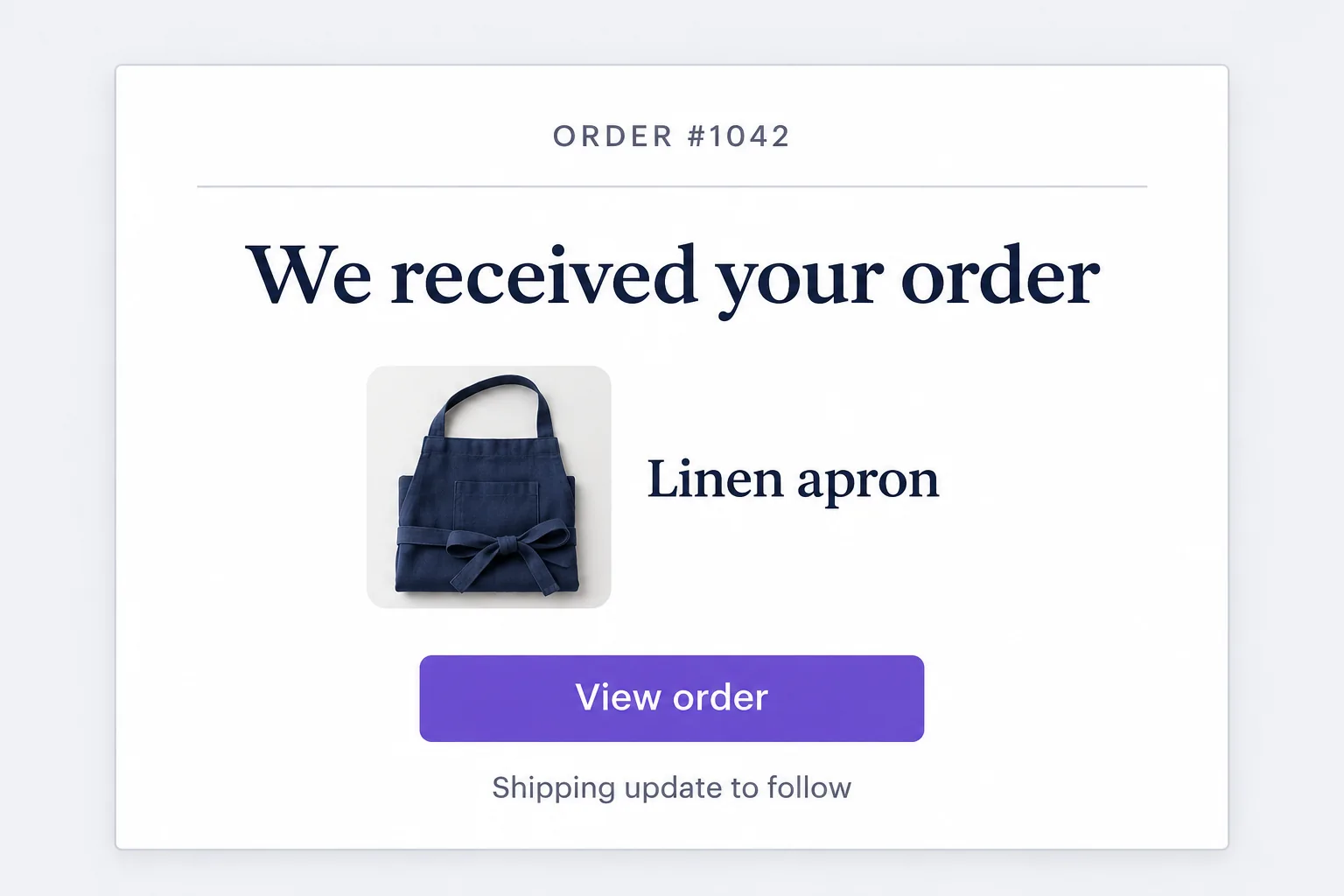
Subject: We received order #1042
Thanks for ordering one navy linen apron. We’ll send a shipping update when it leaves our studio. You can check your order details using the View order button below. If the address needs a correction, reply with order #1042 so we can check whether packing has started.
Use “paid” only when the order actually shows payment received. A preorder with a known dispatch window can name that window, but a normal shipment estimate should not become a guaranteed arrival date.
2. An order for pickup
Subject: Order #1043 received for pickup at North Street
We have your order for two ceramic cups at our North Street shop. Please wait for the ready-for-pickup email before making the trip. That message will tell you where to collect your order and what to bring.
Use the pickup location selected at checkout. Reserve the collection instructions for the notification staff send after preparing the order. Shopify pickup settings.
3. A first-time membership purchase
Subject: Your Reading Room pass order #1044
Thanks for buying an annual Reading Room pass. Your order summary below shows the pass you selected. Look for a separate welcome email with your member sign-in instructions. If it hasn’t arrived, reply with order #1044 and we’ll check your access.
Use this version only if you have enabled and tested the separate welcome email. For membership-only purchases, remove parcel language. If the basket includes a book as well as the pass, say which update covers each item.
Test these four orders before changing the template
From Shopify Settings, open Notifications and find the order confirmation under customer notifications. Preview your changes and send a test email to your own inbox. Then try representative test orders so you can verify the conditions and the order-specific links. Shopify notification preview and test instructions.
| Test order | Check the message | Follow the link |
|---|---|---|
| Shipped item awaiting dispatch | The receipt identifies the item and promises the next update your store actually sends. | View order opens the matching order details. |
| Pickup awaiting preparation | The chosen location is correct and the shopper knows to wait. | Pickup information matches that location. |
| Membership plus merchandise | Access instructions and shipping updates have separate labels. | Check the member sign-in link and the order-status link independently. |
| Payment pending | The wording describes the actual payment status and any action required. | The linked order displays the same outstanding amount. |
Read the subject, first screen and button on a phone with images hidden. Can you identify the order and tell what to do next? If the same shopper receives a second receipt from another service, identify which system sent each message before editing either one. Shopify order-status links.
Trusted by Shopify merchants








Where the membership welcome email fits
Keep the receipt useful even if it arrives before the welcome message. Use the separate welcome email for the first benefit, where to sign in and who can help. Memberply lets a merchant edit and enable the purchase welcome email for a particular membership tier. Memberply purchase welcome email setup.
For examples after the receipt, read the Shopify post-purchase email guide or the membership email examples. To set up a paid membership for your store, view Memberply on the Shopify App Store.
Frequently asked questions
What makes a useful order confirmation subject line?
Use the store name or a recognizable sender, the order number and the current state. “We received order #1042” works even when the warehouse has yet to pack it.
Does a customer need an order confirmation and a shipping email?
Each answers a different question. The receipt confirms the purchase details. A later shipping update can link the parcel and tracking number once fulfillment has those details.
What if one order contains a membership and a physical item?
Name both items in the summary. Give the shipping update for the merchandise and a separate access instruction for the membership. Test each link with a customer account before using the wording.